
Hello Salesforce Thinkers, In our previous blog we learned about Data Loader , in this blog we are going to learn about an important feature of Salesforce that is Data Export Service. Let’s start learning it…
The Data Export Service is helpful for scheduling weekly or monthly exports of all records belonging to a selected objects.

Data Export service can be used to export Salesforce data in csv files. Files, documents,images and attachments can also be included in the export. The export can be executed immediately or scheduled to run on a weekly or monthly basis.
Data Export Service is a tool for backing up Salesforce data that can include all data or selected objects (Including custom objects).
Found within the setup menu.
Export can be scheduled weekly or monthly, or run immediately (maximum once every 7 days).
Salesforce sends an email with a link to retrieve zipped CSV files that expires after 48 hrs.
Images, documents and attachments can be optionally included.
Chatter files and CRM content can be optionally included.
Data from sandbox environments is not supported.
To backup all your data in Salesforce go to:-
Setup >> Enter Data Export in Quick find box >> Then select Data Export .

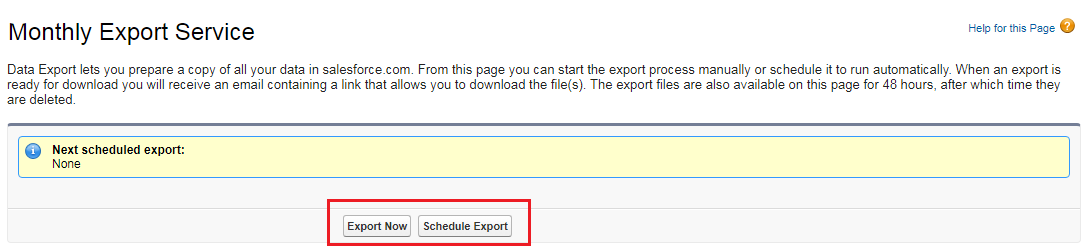
Then select Export Now or Schedule Export.
- The Export Now option prepares your files for export immediately. This option is only available if enough time has passed since your last export.
- The Schedule Export option allows you to schedule the export process for weekly or monthly intervals.
If you want images, documents, attachments, and as well as scheduling the export at a certain time included in your data, select the appropriate options.


Click the “Start Export Button”
- If you’re scheduling your export, select the frequency , start and end dates, and time of day for your scheduled export.
- Under Exported Data, select the types of data to include in your export.
- Click Start Export or Save.
Salesforce creates a zip archive of CSV files and emails the user who scheduled the export when it’s ready.
Large exports are broken up into multiple files. To download the zip file, follow the link in the email or click Data Export. Zip files are deleted 48 hours after the email is sent (not including weekends).
Thank you so much for reading this blog.
 Salesforce Thinkers
“Hi Aushi, thanks a lot for the article!
I should note here that there is an alternative way to export your Salesforce data. I’m talking about 3rd-party tools such as Skyvia. A few simple steps are enough, just do it according to their tutorial: https://skyvia.com/tutorials/how-to-export-data-from-salesforce“
LikeLike
Hi Michael, Thanks for the comment and for sharing the helpful tutorial.
LikeLike