
Hello Salesforce Thinkers, In our previous blog we learned how to Skip verification code for a user in salesforce in this blog we are going to
learn how to “Create a Lightning App.

Lightning Apps :- We can create apps in Lightning Experience, as in Salesforce Classic. Lightning gives us more features and customization for our app. we can brand and customize Lightning apps to help users work more efficiently.
For example, we can create a Lightning app for our teaching department that includes all important tabs and other important objects that users need to complete common tasks.
we can customize the navigation bar color , brand it with a logo.
Also make the app available in the App Launcher for the user profiles associated with the teaching department.
To create a Lightning App follow the below steps:-
- Setup >> Enter App in the Quick Find box >> Select App Manager.

2. Click New Lightning App.

then you will see New Lightning App wizard. It contains several things related to app.
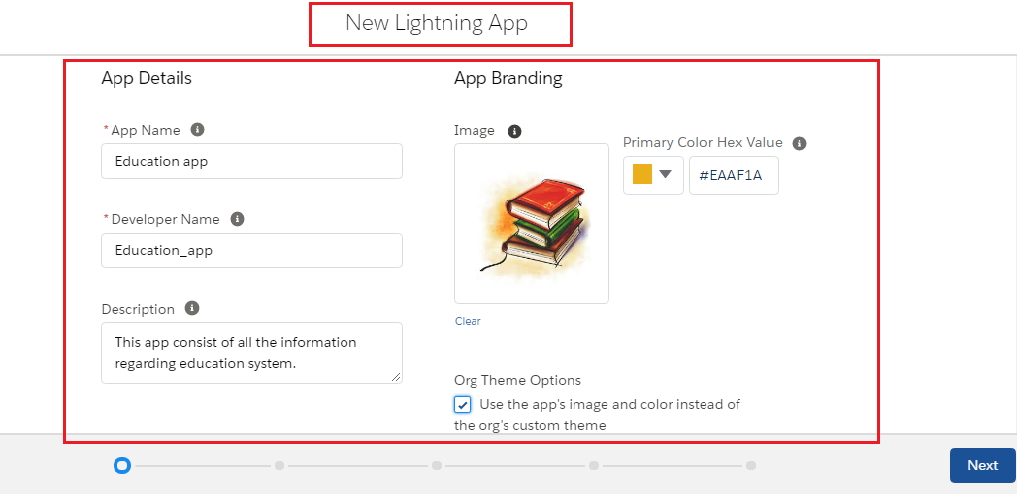
For example:-
- you can Give your app a name, logo, description and can set its primary color.
- Select an image for your app.
- you can also Choose whether to override a custom theme’s brand image and navigation bar color with the brand image and color from the app.
Click on Next.

- Choose the navigation type —standard or console.
- Choose Supported Form Factors : Desktop, Phone, Desktop and phone.
- Also Choose Setup and Personalization settings.
Click on Next.
Add Utility Item :-
Utility bar : The utility bar is a fixed footer that opens components in docked panels. you can add a utility bar for common processes and tools, like Recent Items, Dialer, Notes and Open CTI.

Click on Next.

- Customize which items appear in the app’s navigation bar.
- In navigation bar the item at the top of the list becomes your app’s landing page.
- The order of items in the navigation bar also determines the default objects shown in the Top Results page on the search results page.
- After the user interacts with the app for 15 days, Top Results reflects the user’s most frequently used objects.
Assign the app to user profiles :-

Save & Finish.
- If the user doesn’t have access or permissions to the app, Top Results includes the Account, Contact, Opportunity, Case, Lead, User, and Group objects until the user’s most frequently used objects are determined.
NOTE:- If you add more than 50 default navigation items to an app, your users can’t personalize the app’s navigation bar.
Check out the new app:-
Click on the App Launcher, and select the “Education app”.

This is our app with all the custom branding, icon in the upper left and the custom color we assigned to it.

Things to Know :- The App images for Lightning apps can be animated GIFs.
Thank you for reading this blog, Hope it is helpful.
 Salesforce Thinkers